
Viewing Entry Activity
The Entries tab shows the history of entries at your property. It's a read-only log that lets you see who has come through the gate and when. Your dashboard's Latest Entry Activity widget shows the most recent entries and links here via View all.
Getting to the Entries tab
- Step 1: Open your Property page.
- Step 2: Select the Entries tab.
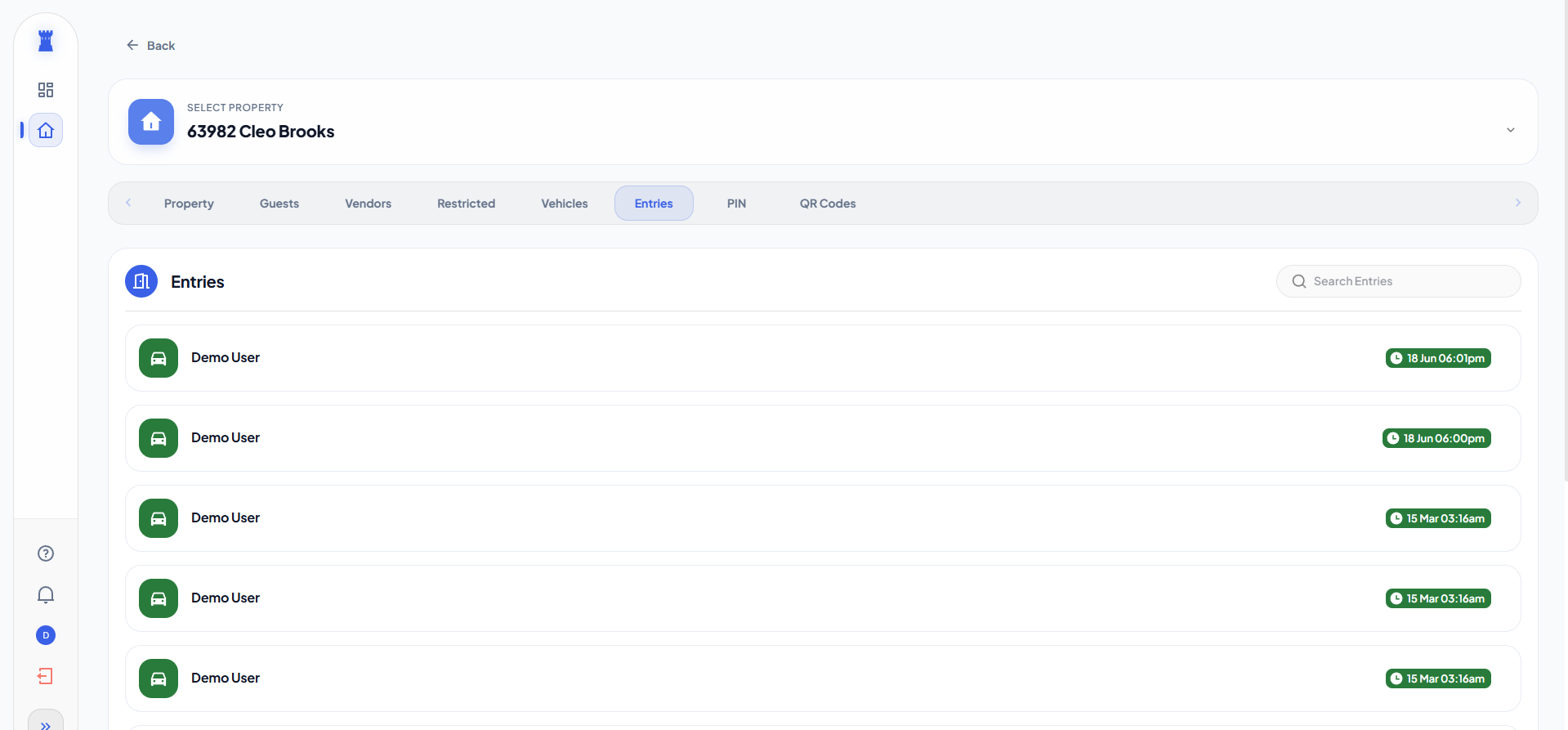
Entries are listed newest first.
What you'll see in the entry list
Each row leads with the person's profile photo, round, inside a coloured tile. Someone without a photo shows their initial instead. The tile's colour marks the outcome, so a refused entry stands out. An entry with no person behind it — a shared property PIN, a walk-up visitor — keeps a glyph in the tile.
Beside the name, a time chip shows when the entry happened. An entry from today shows its time; an older entry shows its day as well. Chips tell you more about how the entry happened:
- A denied indicator marks a refused entry.
- A phone icon marks a door or gate opened from the app — these appear as "Watchtower App" entries, from the My Doors feature.
- A QR glyph means the person entered with a QR code; a PIN glyph means a personal PIN code was used, and a Property PIN chip marks entries made with your shared property PIN.
- Where your community names its gates, an access point chip shows which entrance was used.
Viewing entry details
Select an entry to see more about it, such as the visitor's name and type (resident, guest, or vendor), the exact date and time, and — depending on your community's setup — details like the access point or vehicle involved. An entry that gate staff recorded while their connection was down shows two times: when it was recorded on their device and when it reached the server.
Notes recorded on entries by gate staff are internal and are not shown to residents.
Searching entries
Use the search box at the top of the Entries tab to find entries by name — helpful when you want to know when a specific person last visited. Type at least a few characters to start the search.
Understanding entry types
The log includes entries from every kind of visitor to your property:
- Residents — people who live at your property, including app-based door opens.
- Guests — visitors on your guest list.
- Vendors — service providers on your vendor list.
The Entries tab is read-only: you cannot add, edit, or delete entries. It is simply the record of gate activity for your property. If something in the log looks wrong or unfamiliar, contact your community's management office.
Need help?
Open the Help Center from the navigation menu, or contact your community's management office.